Agent feedback loop
nittle ships explicit review skills for Codex and Claude Code that drive a review through a local MCP server. It can also register that server with Cursor, Gemini CLI, VS Code, Windsurf, OpenCode, Zed, and GitHub Copilot CLI. All integrations need the nittle command on your PATH — see Installation.
Set up your agents
Section titled “Set up your agents”nittle setupnittle setup detects the coding agents you have installed (a binary on PATH or a config directory), then shows a checkbox list: ↑↓ move, space select, a all, enter confirm. Detected agents are listed first and pre-checked. It prints a plan of every command it will run and file it will touch, asks Proceed? [y/N], then applies. Re-running is safe; already-configured agents report unchanged. Restart the agent or start a new session afterwards.
| agent | id | what setup does |
|---|---|---|
| Claude Code | claude |
installs the nittle-review plugin |
| Codex | codex |
installs the nittle-review plugin |
| Cursor | cursor |
adds a nittle MCP server to ~/.cursor/mcp.json |
| Gemini CLI | gemini |
adds it to ~/.gemini/settings.json |
| VS Code | vscode |
adds it to the user mcp.json |
| Windsurf | windsurf |
adds it to ~/.codeium/windsurf/mcp_config.json |
| OpenCode | opencode |
adds it to ~/.config/opencode/opencode.json |
| Zed | zed |
adds it to Zed’s settings.json |
| GitHub Copilot CLI | copilot |
adds it to ~/.copilot/mcp-config.json |
The MCP entry runs nittle mcp serve and every other setting in the file is preserved. If a config file isn’t plain JSON (comments are common in Zed and VS Code), setup never rewrites it and prints the snippet to paste by hand instead.
To skip the prompts, pass --agents claude,codex to select agents and --yes to skip the confirmation. Without a terminal and without --agents, setup exits 1 with a hint. Undo it with nittle setup --remove, which pre-checks every agent nittle is currently set up in. The installer offers to run nittle setup when it finishes; set NITTLE_NO_SETUP=1 to skip that. See the CLI reference.
Manual setup
Section titled “Manual setup”Prefer to install the plugin yourself? Run the commands for your agent.
claude plugin marketplace add codywilliamson/diffleclaude plugin install nittle-review@nittle-local --scope userThen start a new Claude Code session (or run /reload-plugins).
codex plugin marketplace add codywilliamson/difflecodex plugin add nittle-review@nittle-localThen start a new Codex task — existing tasks don’t reload newly installed skills/MCP servers.
The review loop
Section titled “The review loop”-
Ask the agent
Review my current changes with nittle. -
Leave line/file comments and choose Return Feedback.
-
Return to the agent and say
continue. -
The agent replies and re-review requests appear in nittle — choose Refresh diff from the notice to load new changes.
-
Verify, reply in a thread or resolve, then approve or return more feedback. Asking for more after approval reopens the same review.
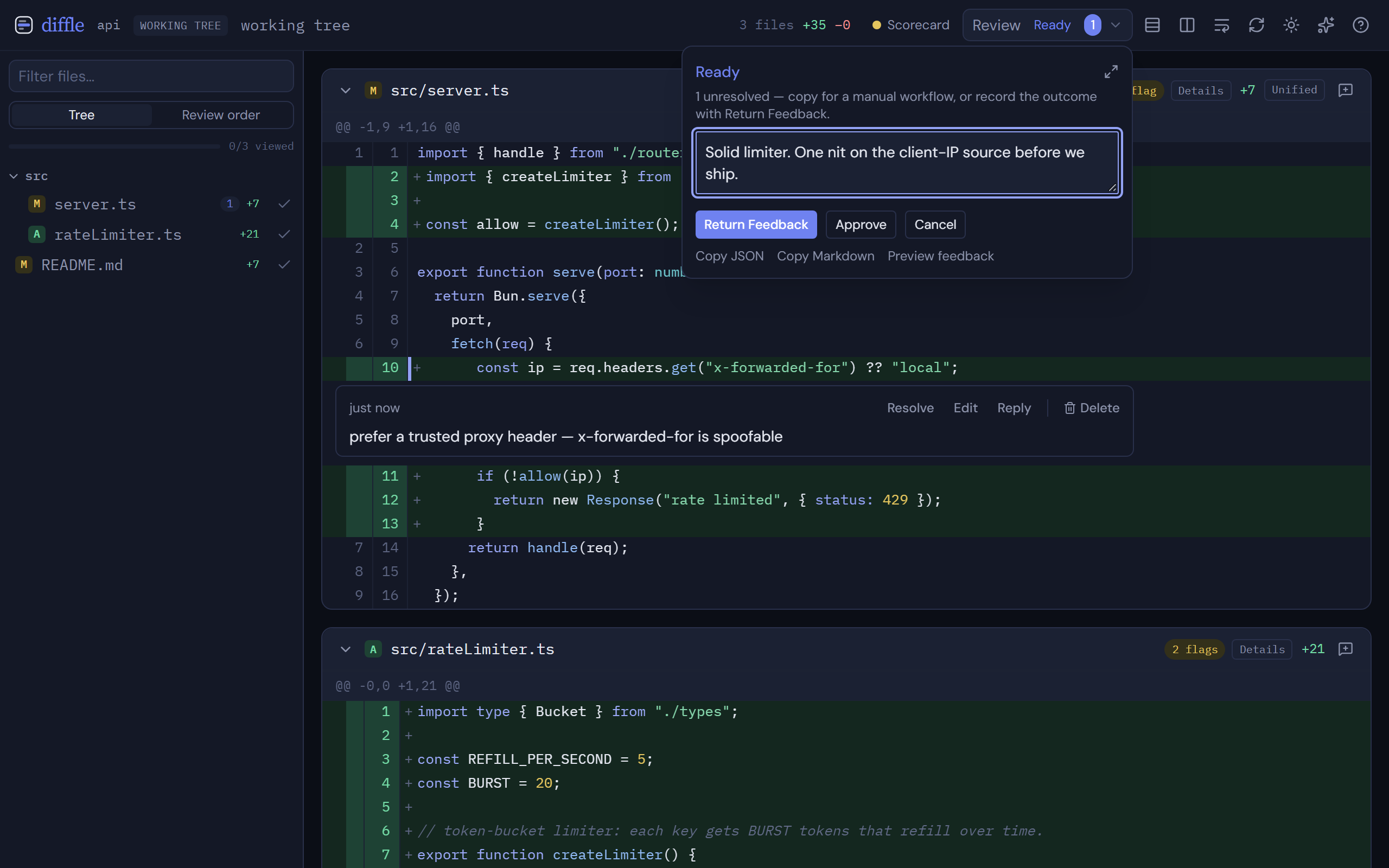
The review menu shows the agent’s latest update rendered as Markdown. For a long update, select the expand icon in the menu’s corner to open the same view in a wide dialog. Your draft summary carries over.
Without MCP: nittle --wait
Section titled “Without MCP: nittle --wait”Any agent that can run a shell command can ask for a review. nittle --wait opens the review in your browser, blocks until you send feedback, approve or cancel, then prints the compiled prompt on stdout and exits.
Three lines for a harness with no MCP:
nittle --wait > feedback.md; code=$? # opens the review and blocks until you respond[ "$code" -eq 0 ] && [ -s feedback.md ] && cat feedback.md # non-empty means there is feedback to act onecho "exit: $code" # 0 = done, 2 = cancelled, 3 = tab closedIn practice the harness runs nittle --wait as one blocking command and reads stdout. Status lines (the URL, “waiting for feedback”) go to stderr, so stdout carries only the prompt. Pass a ref the same way you would without --wait, for example nittle --wait main or nittle --wait staged. Add --no-open to skip launching the browser and open the printed URL yourself.
Exit codes
Section titled “Exit codes”| Code | Meaning | Stdout |
|---|---|---|
| 0 | Feedback returned | The compiled prompt (JSON with --json) |
| 0 | Review approved | Empty (JSON with --json) |
| 2 | Review cancelled | Empty (JSON with --json) |
| 3 | Last tab closed without sending anything | Empty |
| 4 | Session stopped from outside (for example nittle cleanup); the review stays open |
Empty |
| 130 | Interrupted with ctrl+c while waiting | Empty |
| 1 | Error (bad flag, port in use, no such review) | Empty |
To tell approved from feedback, check whether stdout is empty. With --json, stdout is always the get_review structure for feedback, approved and cancelled (read review.status), so empty stdout only applies without --json. A closed tab, a stop and errors print nothing either way.
Closing the tab
Section titled “Closing the tab”Closing the last tab without sending feedback is not an approval. nittle --wait prints nothing on stdout, exits 3 and prints a hint on stderr with the review id. A page reload does not count: nittle waits about five seconds for a tab to come back.
Picking the review up later
Section titled “Picking the review up later”--wait creates a normal durable Review Record, so nothing is lost when it exits. Reopen it with nittle --review-id <id>, or call get_review with that id from an MCP session. To see the review as structured data instead of a prompt, run nittle --wait --json. It prints the same structure get_review returns.
MCP still adds the two-way loop: replies on comments, marking comments addressed and request_rereview. --wait is the one-shot version.
Running the MCP server directly
Section titled “Running the MCP server directly”The MCP server can also be run directly:
nittle mcp serveSee MCP tools for the full tool list.